Results Per Page | Showing 1-6 of 6 Results
| 1
Date Added: 2/9/26
NAPCO iBridge GEM-TOUCH2R Touchscreen Tablet--Quick Start Guide.
Tags:
GEM-TOUCH2R
Date Added: 2/9/26
iBridge App Z-Wave Home Automation User Guide.
For use with the GEM-TOUCH2R Touchscreen Tablet.
Tags:
GEM-TOUCH2R
iBridge App
Date Added: 2/9/26
iBridge App GEM-TOUCH2R Security User Guide.
Tags:
GEM-TOUCH2R
Date Added: 2/26/26
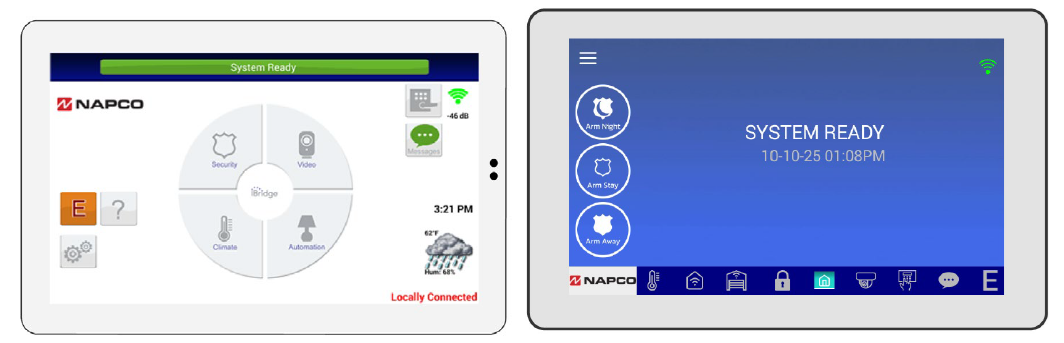
To change the screen appearance from the original IBR-TOUCH tablet (shown below left) to the newer "blue style" GEM-TOUCH2R tablet, follow the instructions in this Technical Note.
Tags:
GEM-TOUCH2R
IBR-TOUCH
IBR-TOUCH-WL
Date Added: 4/29/26
App Version 4.04.230
April, 2026 - WinZip file contains complete instructions and application update for the GEM-TOUCH2R.
Note: This firmware can also be used to update existing or previously installed IBR-TOUCH and IBR-TOUCH-WL models, from the existing "white" display to a new "blue" display.
A USB ("thumb") flash drive MUST be used to perform this update. Proceed as follows:
- Download the .apk file and place the file place into a folder named "napco" (all lowercase, no quotes).
- Place this "napco" folder into the root directory of a USB flash drive.
- Insert the USB drive into the tablet.
- Wait several seconds for the prompt to appear and follow all onscreen instructions.
- When update is complete, remove the USB flash drive.
Tags:
GEM-TOUCH2R
Date Added: 7/6/26
GEM-TOUCH2R Documentation. WinZip file includes the following documents:
- GEM-TOUCH2R Installation Instructions (WI2842)
- GEM-TOUCH2R Quick Start Guide (WI2927)
- iBridge App GEM-TOUCH2R Security User Guide (OI448)
- iBridge App Z-Wave User Guide (OI449)
Tags:
GEM-TOUCH2R
